MCP Apps Integration in A2UI Surfaces
This guide explains how Model Context Protocol (MCP) Applications are integrated and displayed within the A2UI surface, along with the security model and testing guidelines.
NOTE: Looking for the core A2UI-over-MCP protocol? See A2UI over MCP for how to return A2UI JSON payloads from MCP tool calls.
Overview
The Model Context Protocol (MCP) allows MCP servers to deliver rich, interactive HTML-based user interfaces to hosts. A2UI provides a secure environment to run these third-party applications.
Double-Iframe Isolation Pattern
To run untrusted third-party code securely, A2UI utilizes a double-iframe isolation pattern. This approach isolates raw DOM injection from the main application while maintaining a structured JSON-RPC channel.
Security Rationale
Standard single-iframe sandboxing with allow-scripts is often bypassed if combined with allow-same-origin, which defeats the containerization. Any iframe with allow-scripts and allow-same-origin can escape its sandbox by programmatically interacting with its parent DOM or removing its own sandbox attribute.
To prevent this, A2UI strictly excludes allow-same-origin for the inner iframe where the third-party application runs.
The Architecture
- Sandbox Proxy (
sandbox.html): An intermediateiframeserved from the same origin. It isolates raw DOM injection from the main app while maintaining a structured JSON-RPC channel.- Permissions: Do not sandbox in the host template (e.g.,
mcp-app.tsormcp-apps-component.ts). - Host origin validation: Validates that messages come from the expected host origin.
- Permissions: Do not sandbox in the host template (e.g.,
- Embedded App (Inner Iframe): The innermost
iframe. Injected dynamically viasrcdocwith restricted permissions.- Permissions:
sandbox="allow-scripts allow-forms allow-popups allow-modals"(MUST NOT includeallow-same-origin,allow-top-navigation, orallow-top-navigation-by-user-activation). - Isolation: Removes access to
localStorage,sessionStorage,IndexedDB, and cookies due to unique origin. - Top-level window hijacking defense: Omitting
allow-top-navigationandallow-top-navigation-by-user-activationprevents embedded scripts from executing frame-busting attacks (such aswindow.top.location = "...") to redirect the host window away. - Hyperlink exfiltration defense: Omitting
allow-popupsand capturing link navigations prevents untrusted content from exfiltrating data via clickjacking into spawned windows.
- Permissions:
Physical Iframe Nesting
flowchart TD
    subgraph "Host Application"
        A[A2UI Page] --> B["Host Component e.g., McpApp"]
    end
    subgraph "Sandbox Proxy"
        B -->|Message Relay| C[iframe sandbox.html]
    end
    subgraph "Embedded App"
        C -->|Dynamic Injection| D[inner iframe untrusted content]
    end
End-to-End Architecture & Lifecycle Flow
The complete cycle—including layout tree hierarchy, completely separated backend actors (the Proxy Agent and the MCP Server), and how isolated third-party widgets interact reactively with their native siblings (e.g., the Pong game's scoreboard)—is detailed below:
graph TD
    %% 1. Top Tier (Strict vertical hierarchy)
    MCPServer["MCP App Server<br/>(Hosts widget resources & core tools)"]

    %% 2. Middle-Top Tier
    Agent["AI Agent<br/>(A2UI Backend Coordinator)"]

    %% 3. Subgraph for Host layout tree (Bottom Tier)
    subgraph HostApp ["Host Application"]
        direction TB
        Shell["A2UI Rendering Engine & State Manager<br/>(Orchestrates native layout & state bindings)"]

        subgraph LayoutTree ["A2UI Component Tree"]
            McpComponent["McpApp Component<br/>(Sandboxed HTML/JS Widget)"]
            SiblingComponent["Other A2UI Components<br/>(e.g., PongScoreBoard)"]
        end

        Shell <-->|"1. Initialize postMessage Event Bridge"| McpComponent
        Shell -.->|"5. Reactive State Update<br/>(e.g., Render updated score)"| SiblingComponent
    end

    %% Vertical Channel connecting Top to Middle-Top
    MCPServer ==>|"MCP Protocol (SSE / Stdio)"| Agent

    %% Unidirectional Data Cycle (Flowing vertically through the center)
    McpComponent ==>|"2. Tool Action Request<br/>(e.g., score_update)"| Shell
    Shell ==>|"3. Action Delegation (A2UI Protocol)"| Agent
    Agent ==>|"4. State Mutation & Sync (dataModelUpdate)"| Shell

    %% Style Sibling Relationship
    McpComponent -.->|"No Direct Access (Strictly Isolated)"| SiblingComponent
How the Sibling Update Loop Works:
- Initialize postMessage Event Bridge (1): The host shell instantiates the double-iframe sandbox and establishes a secure message relay bridge with the
McpAppcomponent. - Tool Action Request (2): When a user interacts with the sandboxed app (e.g., scores a point in the Pong game), the app triggers a tool action by posting a message over the postMessage bridge.
- Action Delegation (3): The host layout engine intercepts the action and delegates its execution to the
AI Proxy Agentover the A2UI/A2A protocol. The agent optionally coordinates with theMCP App Serverusing the standard MCP Protocol (SSE / Stdio) if external calculation or resources are required. - State Mutation & Sync (4): The agent processes the action, mutates the master session state, and pushes a
dataModelUpdateback to the host state manager. - Reactive State Update (5): The host updates its local store, triggering a reactive update on sibling A2UI components (such as native scoreboards or displays) bound to that state path. Direct communication between the sandboxed component and native sibling elements is strictly blocked to maintain containerization security.
Usage / Code Example
The MCP Apps component typically resolves to a custom node in the A2UI catalog. Here is how a developer might use it in their code.
1. Register within the Catalog
You must register the component in your catalog application. For example, in Angular:
import {Catalog} from '@a2ui/web_core/v0_9';
import {z} from 'zod';
import {McpApp} from './mcp-app';
import {Button} from './button';
import {Snackbar} from './snackbar';

const McpAppSchema = z.object({
  content: z.union([z.string(), z.object({id: z.string()})]).optional(),
  allowedTools: z.array(z.string()).optional(),
  title: z.string().optional(),
});

export const DEMO_CATALOG = new Catalog(
  'my_app.org/some_catalog.json',
  'v0.9',
  [
    {name: 'McpApp', component: McpApp, schema: McpAppSchema},
    {
      name: 'Button',
      component: Button,
      schema: z.object({
        label: z.string(),
        action: z.any().optional(),
      }),
    },
    {
      name: 'Snackbar',
      component: Snackbar,
      schema: z.object({
        message: z.string(),
        durationMs: z.number().default(3000),
      }),
    },
  ]
);
2. Usage in A2UI Message
In the Host or Agent context, send an A2UI message that translates to this custom node.
{
  "type": "custom",
  "name": "McpApp",
  "properties": {
    "content": "<h1>Hello, World!</h1>",
    "title": "My MCP App"
  }
}
If the content is complex or requires encoding, you can pass a URL-encoded string:
{
  "type": "custom",
  "name": "McpApp",
  "properties": {
    "content": "url_encoded:%3Ch1%3EHello%2C%20World!%3C%2Fh1%3E",
    "title": "My MCP App"
  }
}
Communication Protocol
Communication between the Host and the embedded inner iframe is facilitated via a structured JSON-RPC channel over postMessage.
- Events: The Host Component listens for a
SANDBOX_PROXY_READY_METHODmessage from the proxy. - Bridging: An
AppBridgehandles message relaying. Developers (specifically the MCP App Developer inside the untrusted iframe) can call tools on the MCP server usingbridge.callTool(). - The Host: Resolves callbacks (e.g., specific resizing, Tool results).
Limitations
Because allow-same-origin is strictly omitted for the innermost iframe, the following conditions apply:
- The MCP app cannot use
localStorage,sessionStorage,IndexedDB, or cookies. Each application runs with a unique origin. - Direct DOM manipulation by the parent is blocked. All interactions must proceed via message passing.
Prerequisites
To run the samples, ensure you have the following installed:
- Python 3.10+ — Required for the agent and MCP server backends
- uv — Fast Python package manager (used to run all Python samples)
- Node.js 18+ and Yarn — Required for building and running the sample client apps within this monorepo workspace.
- A
GEMINI_API_KEY— Required by all ADK-based agents. Get one from Google AI Studio
Package Manager Usage: Running the built-in sample applications within the A2UI repository requires Yarn as configured by Corepack workspaces. For your own regular usage and standalone projects outside this repository, use the package manager of your choice (e.g. npm, pnpm).
⚠️ Environment variable setup: You can either export
GEMINI_API_KEYin your shell or create a.envfile in each agent directory. The agents usedotenvto load.envfiles automatically.
Samples
There are three samples demonstrating MCP Apps integration. All live under samples/community/. Sample 1 and Sample 2 predate protocol v1.0 (Sample 1 uses A2UI v0.8 and Sample 2 uses A2UI v0.9) and each defines its own MCP App component rather than using the McpApp component from the v1.0 MCP catalog. Sample 3 uses protocol v1.0 and the McpApp component from @a2ui/catalog-mcp. Each sample requires running multiple terminals — one for each backend service and one for the client.
Sample 1: MCP App Standalone Sample (Lit Client & ADK Agent)
This sample verifies the sandbox with a Lit-based client and an ADK-based A2A agent.
Step 1: Start the Agent
In a separate terminal, navigate to the agent directory and start the agent:
# Run from the repository root
cd samples/community/agent/adk/mcp-apps-in-a2ui-sample
uv run agent.py
The agent will run on http://localhost:8000.
Step 2: Start the Client
In a new terminal, navigate to the client directory and start the dev server (requires building the Lit renderer first):
# Run from the repository root
cd samples/community/client/lit/mcp-apps-in-a2ui-sample
yarn install
yarn dev
The client starts at http://localhost:5173/.
Step 3: Open in Browser
Open your browser and navigate to http://localhost:5173/. You should see the A2UI interface loading the MCP App.
What to expect: A page loading the MCP App in a sandboxed iframe. Clicking the "Call Agent Tool" button inside the iframe will trigger an action that is handled by the agent.
Sample 2: MCP Apps (Calculator + Pong) (Angular Client + MCP Server + Proxy Agent)
This sample verifies the sandbox with an Angular-based client, an MCP Proxy Agent, and a remote MCP Server. It requires three backend processes.
Step 1: Start the MCP Server (Calculator)
The MCP server starts on http://localhost:8000 (or another port if 8000 is occupied, e.g. uv run . --port 8001) using SSE transport.
Step 2: Start the MCP Apps Proxy Agent
In a new terminal:
cd samples/community/agent/adk/mcp_app_proxy/
export GEMINI_API_KEY="your-key"  # or use a .env file
uv run .
The proxy agent starts on http://localhost:10006 by default.
Step 3: Build and Start the Angular Client
First, build the renderer packages by running yarn build:all at the repository root directory:
Then, in a new terminal, navigate to the client directory, install local dependencies, and start the app (which automatically bundles the sandbox iframe proxy and starts the development server):
# Navigate to the client directory
cd samples/community/client/angular/

# Install local dependencies
yarn install

# Start the app and bundle sandbox
yarn start mcp_calculator
⚠️
yarn build:allis required:yarn build:allcompiles the A2UI renderer packages that the Angular app depends on. Runningyarn start mcp_calculatorautomatically bundles the sandbox proxy into the Angular project's public assets before starting the server.
The client starts at http://localhost:4200/.
Step 4: Open in Browser
Navigate to:
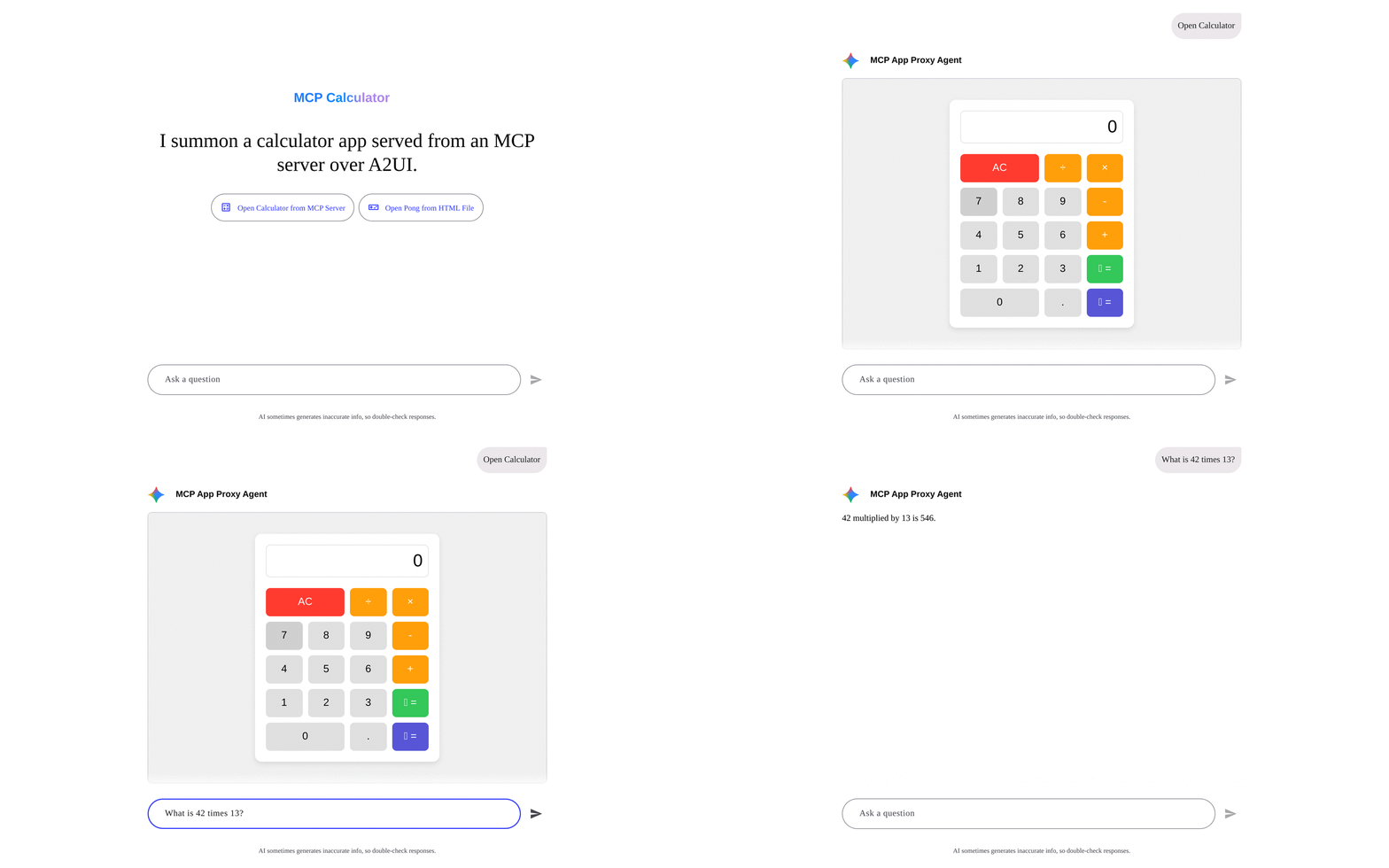
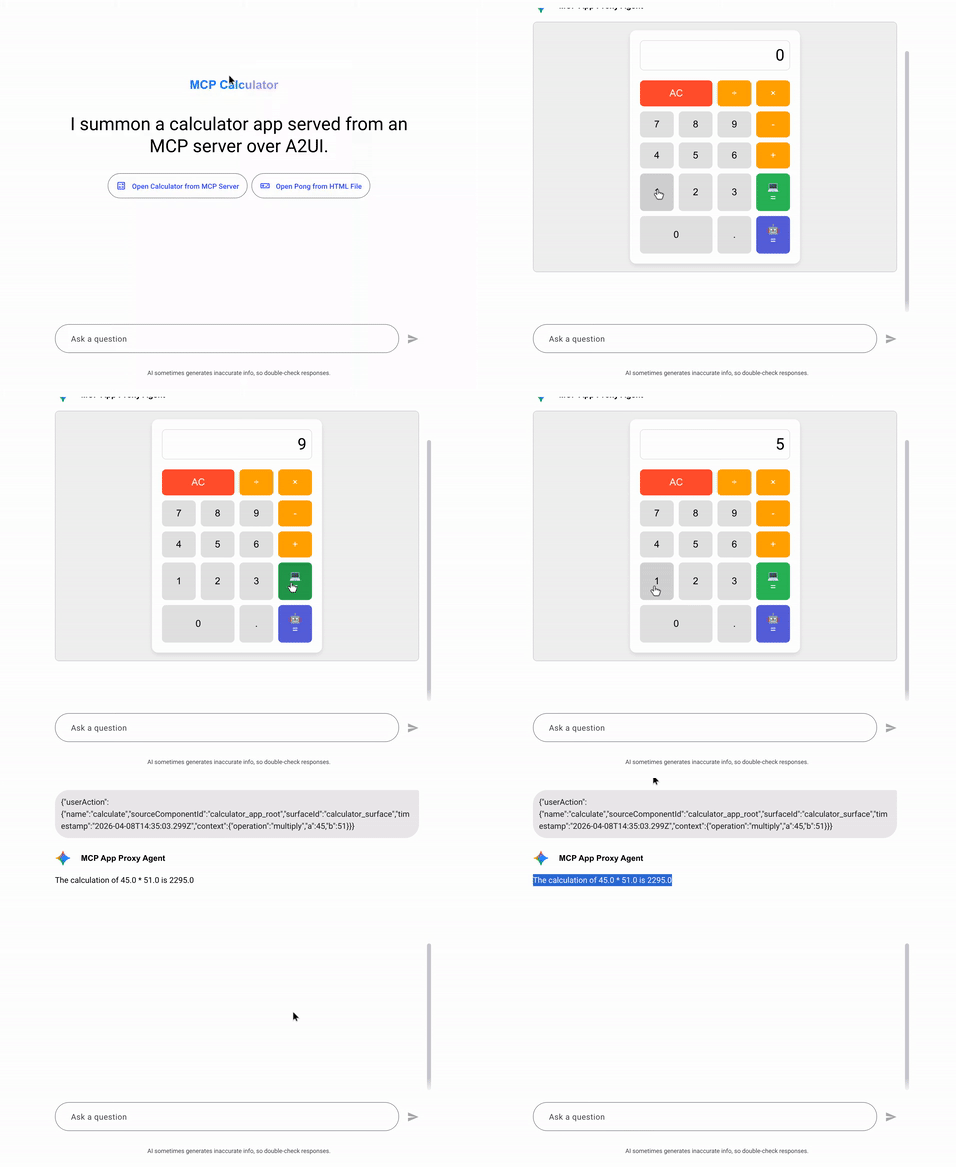
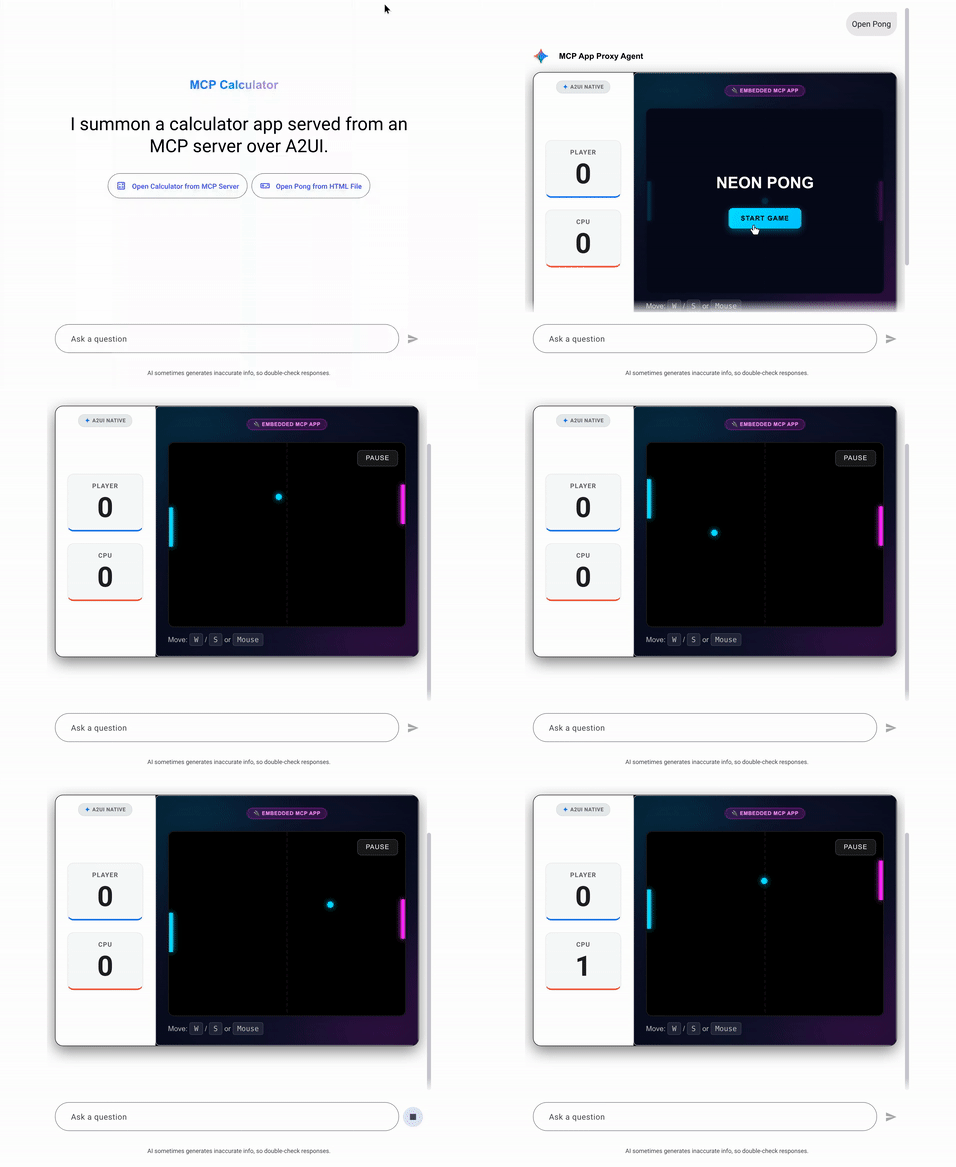
What to expect: A set of smart chips to load calculator app or pong app will be rendered. Both apps run in their own sandboxed iframes.
| Calculator App | Pong App |
|---|---|
 |
 |
Sample 3: Kanban Board Showcase (Lit Chat Host + Python Agent + Node MCP Server)
This sample (samples/community/mcp/a2ui-kanban/) demonstrates bidirectional communication between an agent, a sandboxed MCP App built with @modelcontextprotocol/ext-apps, and sibling A2UI components using @a2ui/catalog-mcp:
- Agent → MCP App: The agent invokes MCP server tools (
move_task,create_task) and emits anupdateDataModelmessage writing/kanban/board, whichMcpApppushes to the board app asui/notifications/data-model-update. - Agent reads MCP App state: Selecting a card or filtering by assignee in the board app sends
ui/update-model-context, whichMcpAppwrites into the surface data model sent with the next user turn. - MCP App → sibling A2UI components: Dragging a card sends
ui/notifications/data-model-changeforboard, updating/kanban/boardand recomputing the siblingTextcounters (/kanban/summary/*) client-side without an agent turn. - MCP App → Agent: Dropping a card (
tools/call+ui/message) or clicking "Ask agent to split" (ui/message) dispatches ana2ui.mcpAppMessageaction that the chat host forwards to the agent.
Step 1: Build Monorepo Packages and Start the MCP Server
From the repository root, build @a2ui/catalog-mcp and @a2ui/lit, install the community workspace dependencies, and start the Kanban MCP server on http://localhost:8788/mcp:
yarn install
yarn workspace @a2ui/catalog-mcp run build
yarn workspace @a2ui/lit run build

cd samples/community
yarn install

cd mcp/a2ui-kanban/mcp-server
yarn build
yarn start
Step 2: Start the Kanban Agent
In a new terminal, start the Python A2A agent on http://localhost:10007 (use KANBAN_AGENT=scripted to run the deterministic walkthrough without a Gemini API key):
cd samples/community/mcp/a2ui-kanban/agent
export GEMINI_API_KEY="your-key"  # or export KANBAN_AGENT=scripted
uv run .
Step 3: Start the Lit Chat Host
In a new terminal:
Open http://localhost:5173/ and click "Show me the sprint board" to load the board surface.
URL Options for Testing
For testing purposes, you can opt-out of the security self-test by using specific URL query parameters.
disable_security_self_test=true
This query parameter allows you to bypass the security self-test that verifies iframe isolation. This is useful for debugging and testing environments where the double-iframe setup may not pass strict origin checks (e.g., localhost development).
Example usage:
Troubleshooting
| Problem | Solution |
|---|---|
GEMINI_API_KEY environment variable not set |
Export the key or add a .env file in the agent directory |
Python version error on restaurant_finder agent |
Install Python 3.13+ (required by that sample's pyproject.toml) |
yarn build:renderer fails |
Make sure you ran yarn install first in samples/client/lit/ |
| Angular client shows blank page | Ensure you ran yarn build:sandbox before yarn start |
| MCP app iframe doesn't load | Check that both the MCP server (port 8000) and proxy agent (port 10006) are running |
ng serve not found |
Run yarn install to install dev dependencies including @angular/cli |
| "URL with hostname not allowed" | Angular 21 restricts allowed hosts. Use localhost (the default) — do not pass --host 0.0.0.0 |
| Security self-test fails in dev | Add ?disable_security_self_test=true to the URL |